


Your back aches by noon, your internet lags during video calls, and your living room feels like a chaotic mess. A poor remote work setup doesn’t just hurt your productivity; it drains your energy and blurs the line between work and rest.
But you don’t need a fancy office or a big budget to fix it. With the right ergonomic chair, a stable internet connection, and a few smart layout choices, you can create a work-from-home setup that boosts your focus and protects your health.
Building a Home Office Setup That Works for You
A good remote work setup starts with the basics: an ergonomic chair with strong lumbar support and a desk that lets you switch between sitting and standing. Brands like Herman Miller and Steelcase are top choices for comfort, but you can find quality options for under $300.
Your internet speed matters a lot. For smooth video calls, aim for at least 100 Mbps download speed. A wired Ethernet connection is more reliable than Wi-Fi for critical meetings. Add a 1080p webcam and a noise-canceling headset to look and sound professional.
Lighting is often overlooked. Place your desk perpendicular to a window to use natural light, and add a front-facing lamp to reduce shadows on your face. This simple change cuts down on eye strain and makes you look better on camera.
The 2026 Remote Work Setup: Your Ultimate Productivity Hub
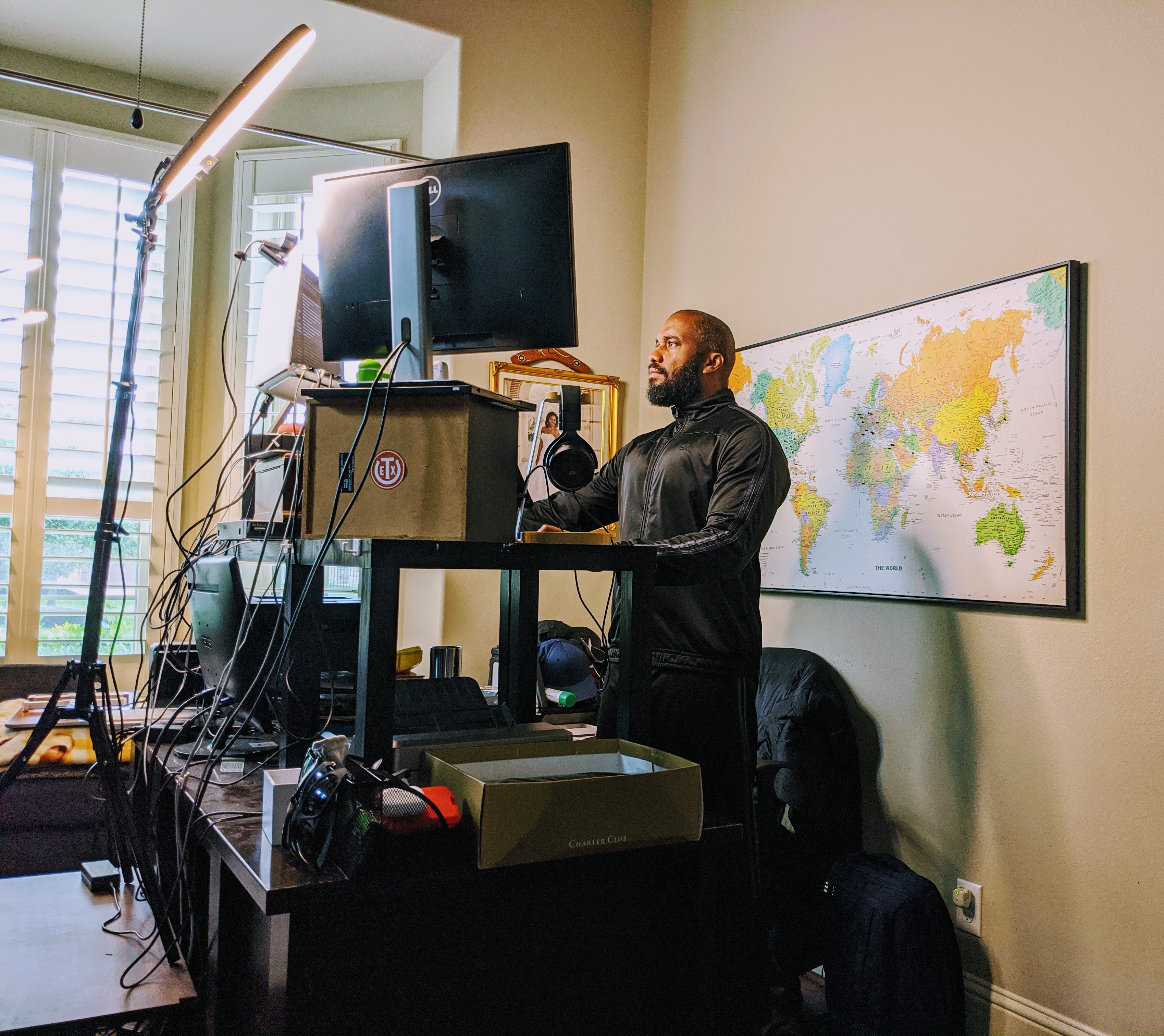
Creating an effective remote work setup in 2026 means blending comfort with top performance. It is about making your home office work for you. We focus on smart choices that boost your workday. This setup is an investment in your well-being and output. Think of it as building your personal command center.
| Component | Average Cost (USD) | Key Features |
| Ergonomic Chair | $300 – $1,000+ | Lumbar support, adjustability |
| Sit-Stand Desk | $400 – $1,200+ | Adjustable height, stability |
| External Monitor (24-27 inch) | $150 – $400 | High resolution, good refresh rate |
| Webcam (1080p/4K) | $50 – $150 | Clear video, good low-light performance |
| Headset with Mic | $75 – $200 | Noise cancellation, comfort |
| Internet Speed (Recommended) | Varies | 100+ Mbps download, 300+ Mbps ideal |
Ergonomic Workstation Setup
An ergonomic workstation is the foundation of a healthy remote office. Prioritize a chair with excellent lumbar support and full adjustability. This prevents back pain and fatigue. Your desk should allow for a natural arm position. Your elbows should be at about a 90-degree angle when typing. This setup is crucial for long work hours.
Common Mistake: Using a standard dining chair. These lack the necessary support for extended sitting. This can lead to serious posture issues over time. Invest in a chair designed for office work. Your body will thank you.
Small Home Office Solutions
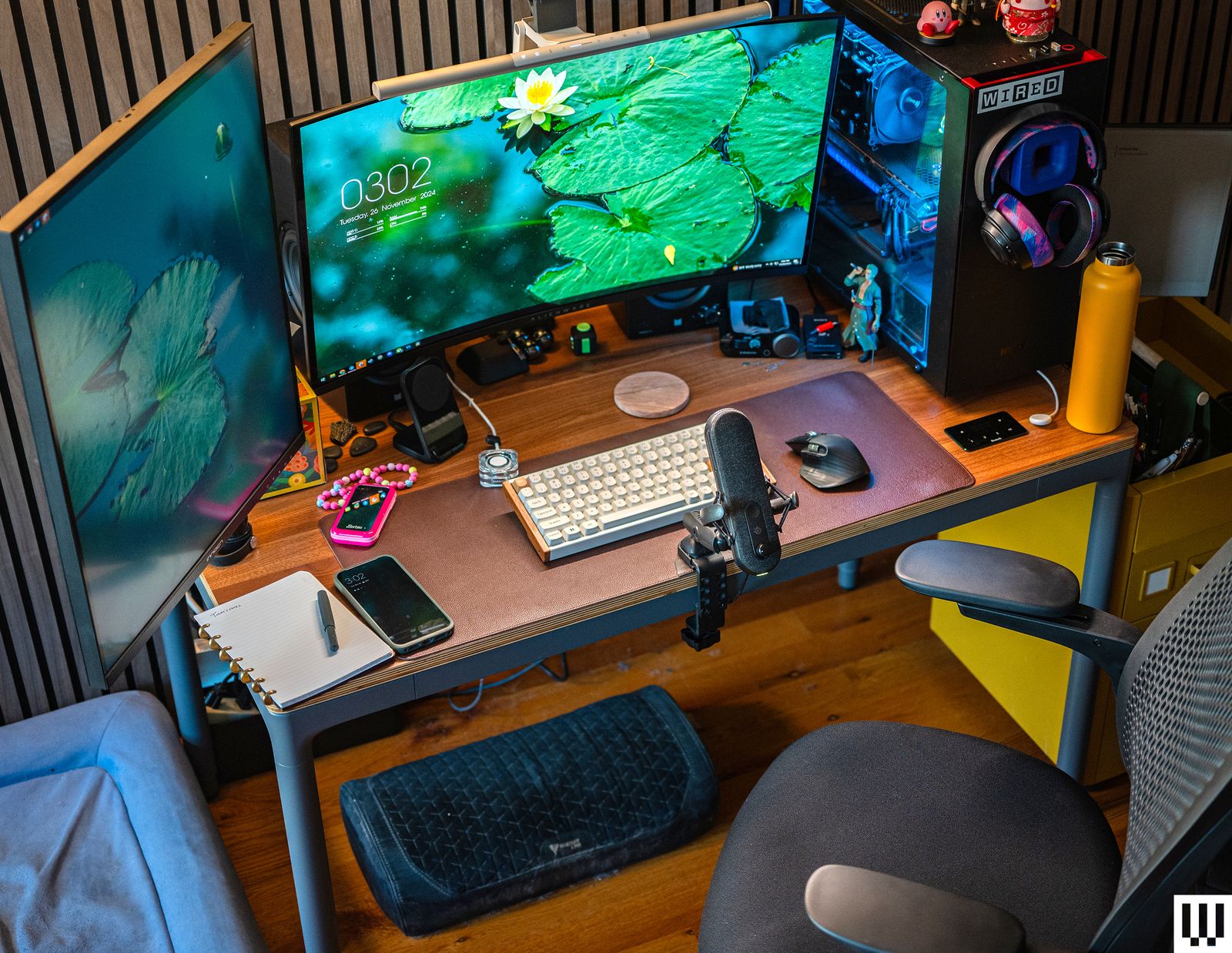
Limited space does not mean limited productivity. Dedicated workspace creation is key. Use physical dividers or strategic furniture placement. This visually separates your work area from living spaces. Even a corner can become an effective office. Think vertically with shelves and wall organizers.
For small spaces, consider a wall-mounted desk. It folds up when not in use. This maximizes floor space. It makes your area feel larger and more organized. This is a smart solution for apartments or smaller homes.
Minimalist Desk Setup
A minimalist desk setup focuses on essentials. It reduces visual clutter, which helps concentration. Keep only what you need for your current tasks on the desk. Use cable management solutions to hide wires. This creates a clean and calm environment. A tidy desk often leads to a tidy mind.
Key Principle: Less is more. Choose multi-functional items. For example, a monitor stand with built-in storage. This keeps your desk clear and organized. It promotes a focused workflow.
Standing Desk Productivity
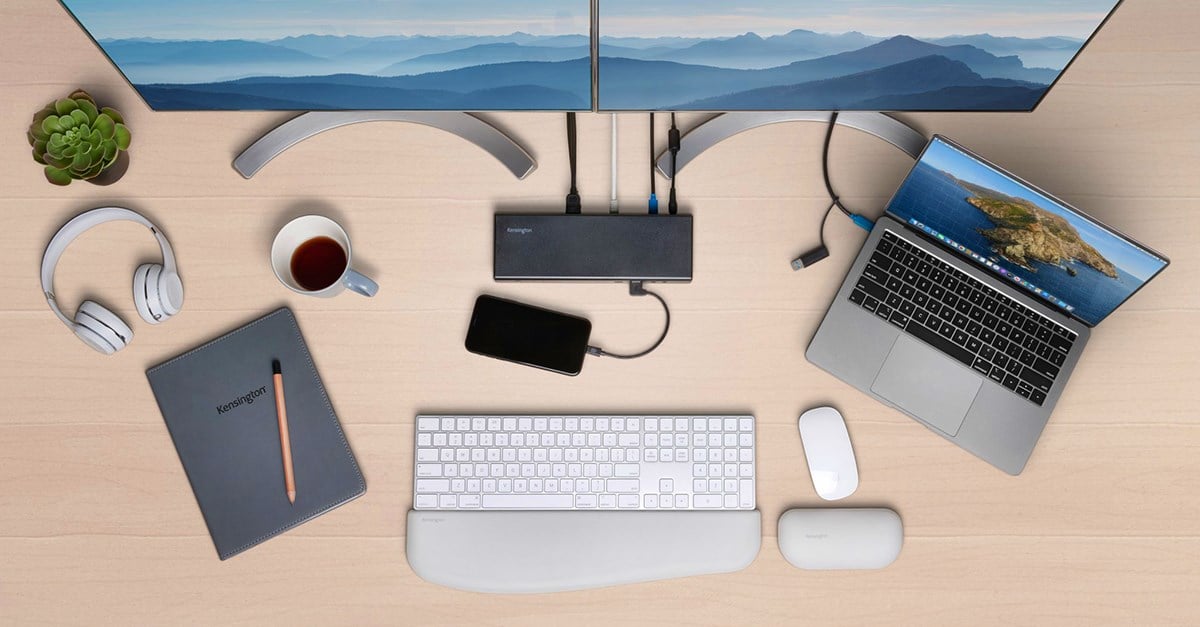
A standing desk setup can significantly boost energy levels. Alternating between sitting and standing reduces sedentary behavior. This is good for your health and focus. Aim to stand for at least 30 minutes every hour. This movement helps combat fatigue. It can improve alertness during the workday.
Benefit: Many users report increased focus and fewer energy dips. It encourages subtle movement throughout the day. This is a powerful tool for a productivity setup. Remember to adjust it to your perfect height.
WFH Essentials Checklist
Beyond the desk and chair, several WFH essentials are vital. Ensure you have a reliable internet connection. Speeds of 100 Mbps download are a minimum for video calls. For heavy data use, aim for 300 Mbps or more. A wired Ethernet connection offers the most stability for critical meetings. This prevents frustrating interruptions.
Don’t forget good lighting and audio. A quality webcam and headset are non-negotiable for clear communication. These tools make remote collaboration seamless. They ensure you are seen and heard professionally.
Office Chair for Remote Work
Choosing the right office chair for remote work is paramount. Look for chairs with adjustable armrests, seat depth, and height. Strong lumbar support is essential for preventing lower back pain. A chair that fits your body properly supports good posture. This is critical for long hours at the computer. It prevents strain and discomfort.
Expert Advice: Try chairs in person if possible. Ergonomics are personal. What works for one person might not work for another. Invest in quality; it pays off in comfort and health.
Webcam for Video Calls
Clear visual communication is key in remote work. A best webcam for calls should offer at least 1080p resolution. Higher resolutions like 4K provide sharper images. Good low-light performance is also important. This ensures you look good even in less-than-ideal lighting. A built-in microphone is a plus, but a dedicated headset is better.
Avoid: Relying solely on your laptop’s built-in webcam. These are often low quality. They can make you appear grainy or pixelated. An external webcam is a small upgrade with a big impact.
Ambient Lighting Tips
Proper lighting reduces digital eye strain. Position your desk to maximize natural light. Place it perpendicular to a window, not directly in front or behind it. This prevents glare on your screen. Use artificial light to illuminate your face from the front. This ensures you are well-lit on video calls.
Solution: Use a desk lamp with adjustable brightness. Soft, diffused light is best. Avoid harsh overhead lights that create shadows. Good lighting makes your workspace more comfortable and professional.
The Future of Your Workspace
Your remote work setup is more than just furniture and tech. It is a dynamic environment that supports your daily grind. By focusing on ergonomics and smart technology, you create a space that enhances both productivity and well-being. Investing in these elements is investing in yourself. Make choices that support your long-term health and career.
Final Verdict: Prioritize comfort and functionality. A well-designed setup reduces stress and boosts efficiency. Explore options like standing desk setups and decluttering for a better workflow. Your home office should empower you, not hinder you. Remember to take breaks and practice the 20-20-20 rule to protect your eyes. For more ideas on creating your ideal space, check out remote work setup ideas. Also, learn about essential home office essentials.
Your 3-Step Remote Work Setup Action Plan
Step 1: Fix Your Posture Foundation
Start with the chair. Adjust the seat height so your feet rest flat on the floor and your knees are at a 90-degree angle.
Your lower back should feel supported by the chair’s lumbar curve. If not, add a small cushion or rolled towel.
Step 2: Position Your Screen and Keyboard
Place your monitor directly in front of you, about an arm’s length away. The top of the screen should be at or slightly below eye level.
Keep your keyboard close so your elbows stay at a 90-degree angle and your wrists remain straight. Consider a separate keyboard and mouse for better ergonomics.
Step 3: Optimize Your Environment
Position your desk perpendicular to a window to reduce glare and take advantage of natural light. Use a desk lamp with adjustable brightness for evening work.
Choose a quiet corner or use a room divider to create a visual boundary. This helps your brain switch into work mode.
Frequently Asked Questions
Do I really need an expensive ergonomic chair?
Not necessarily. A good mid-range chair with adjustable lumbar support and armrests can work well for most people.
What matters most is that the chair fits your body size and encourages good posture throughout the day.
How much internet speed do I need for video calls?
For stable video conferencing, aim for at least 100 Mbps download speed. For heavy data tasks like large file uploads, 300 Mbps or more is better.
A wired Ethernet connection is more reliable than Wi-Fi for important meetings. It reduces lag and dropped calls.
Can I set up a remote workspace in a small apartment?
Yes. Use a corner of your living room or bedroom with a compact desk and a chair that can be tucked away.
Physical dividers like a folding screen or even a tall bookshelf can create a dedicated zone without permanent construction.
By following these ergonomic and tech guidelines, you can build a home office that supports your health and productivity for years to come.
Start with the steps above and adjust as you learn what works best for your body and workflow.
A well-designed remote work setup is an investment in your daily comfort and long-term well-being.
